
1 PC Tip a day
-
Posts
72 -
Joined
-
Last visited
-
Days Won
29
12 Followers








Recent Profile Visitors
9479 profile views



1 PC Tip a day's Achievements





-
I've never used RSLCD sensor paneles. What's the difference between them and "common" SensorPanels?
-
Aida64 Viewer - For displaying RSLCD sensor panels
1 PC Tip a day replied to Swatgod's topic in 3rd party solutions
Hi @Swatgod. Thanks for your work. I've recently launched this Watcher: Check it out; maybe you can draw some ideas for your Viewer app too! -
I was unaware of its existence. I suppose the Viewer and my Watcher are different approaches with the same objective: to ensure the SensorPanel functions correctly at all times
-
Introducing AIDA64 SensorPanel Watcher
1 PC Tip a day replied to 1 PC Tip a day's topic in SensorPanel
@MoonTime622 @Movingon007 @slipkidOG Check this out!- 1 reply
-
- 1
-

-
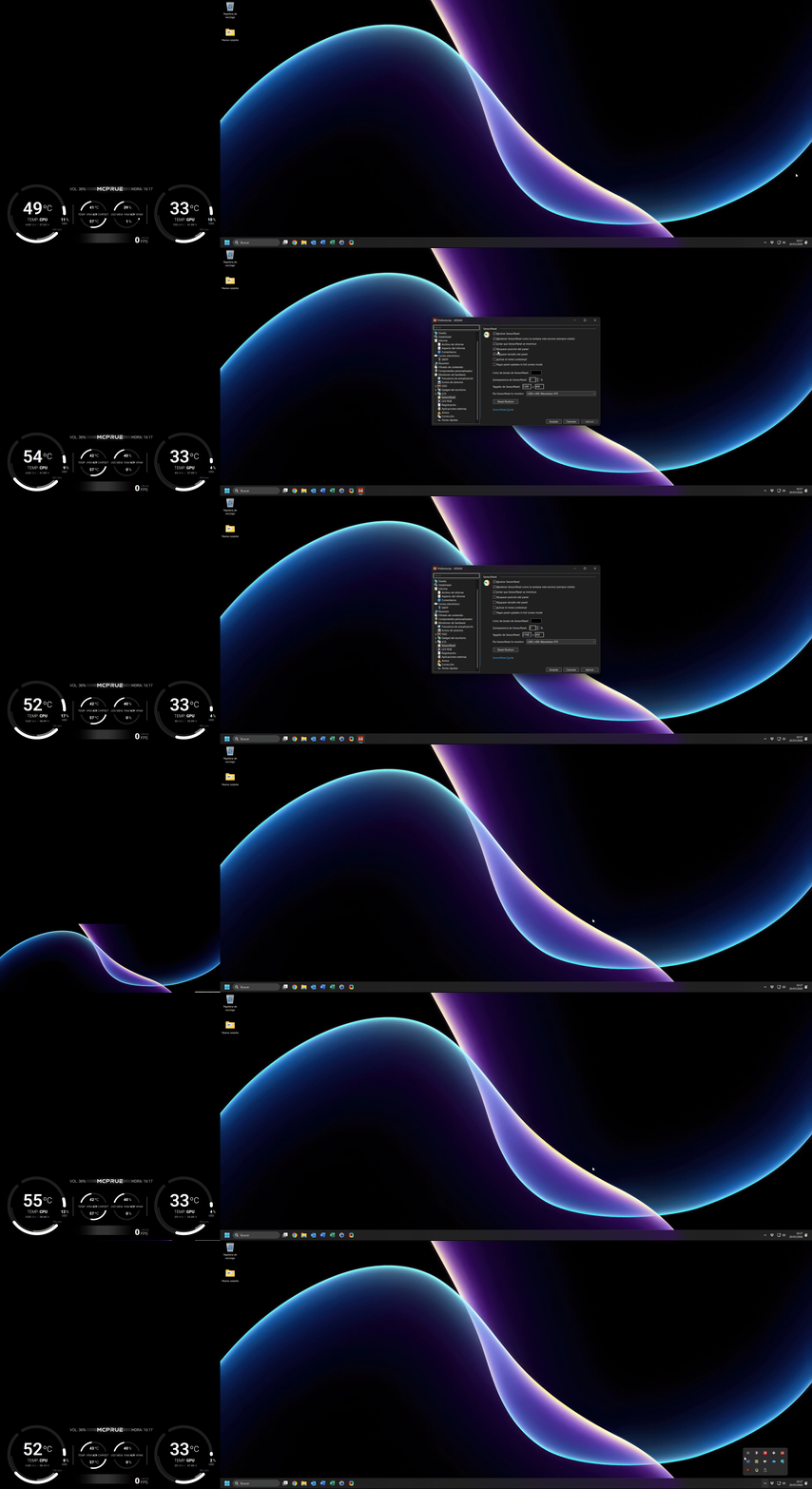
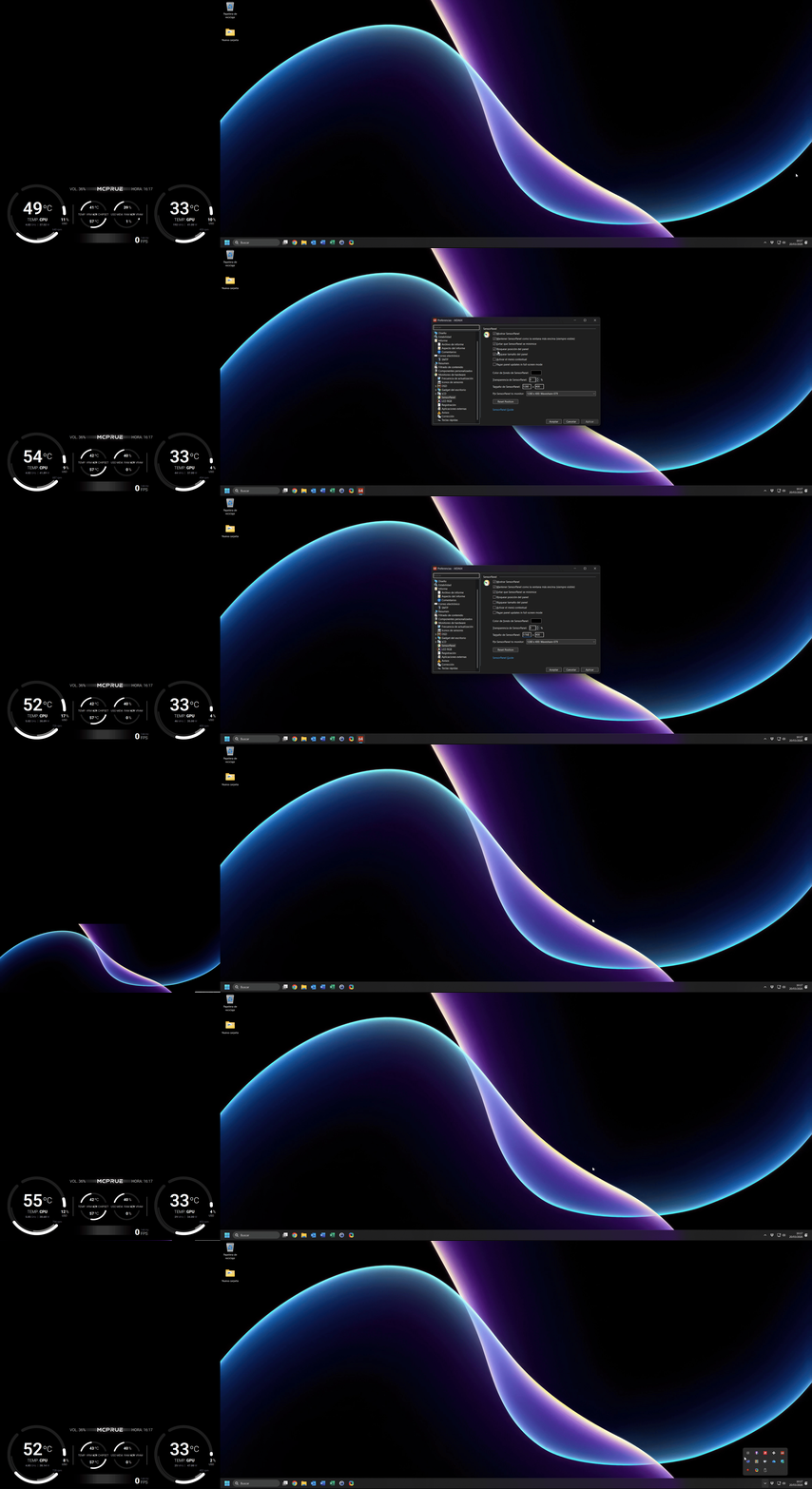
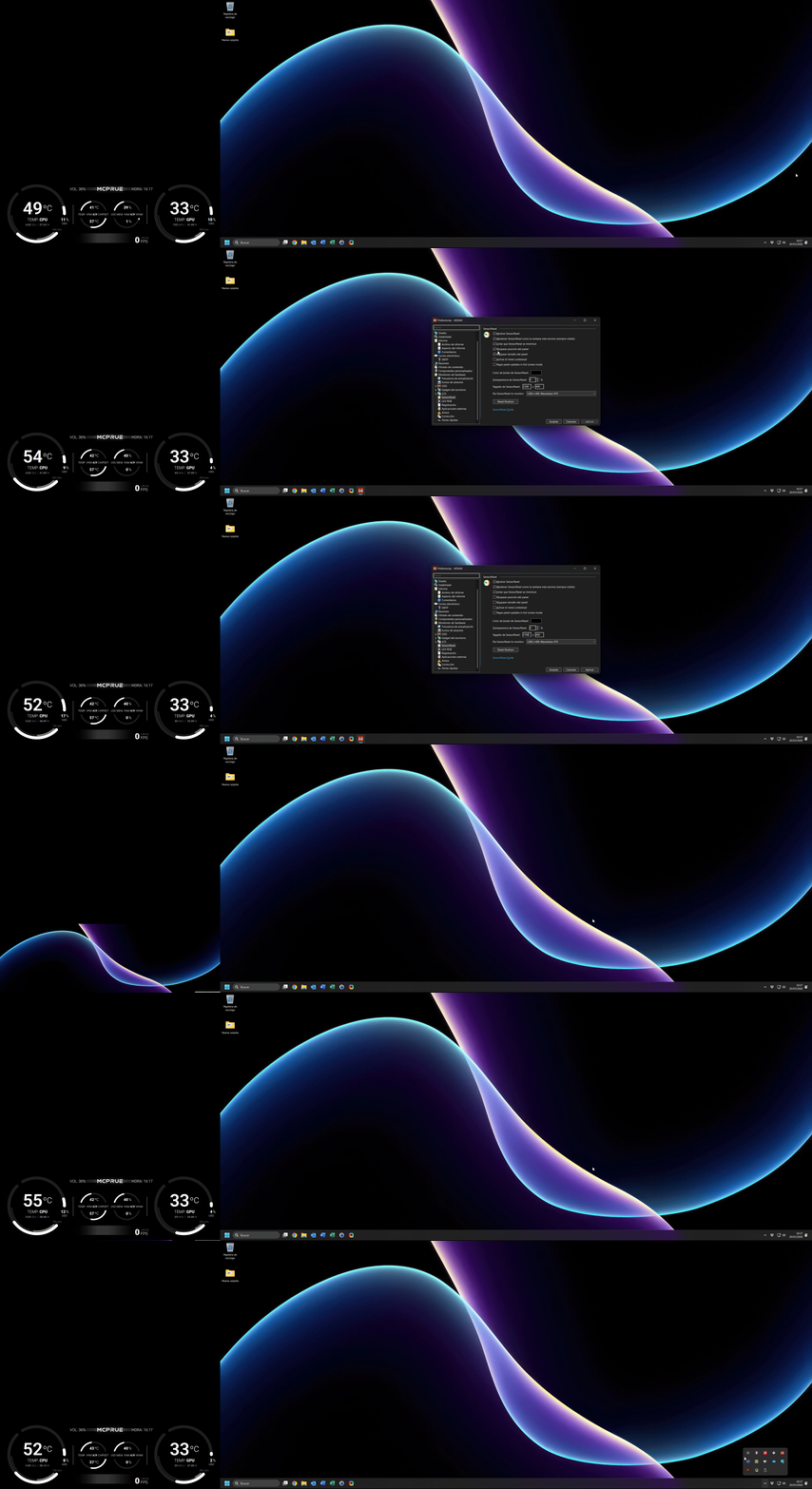
Here you can see the Watcher in action:
-
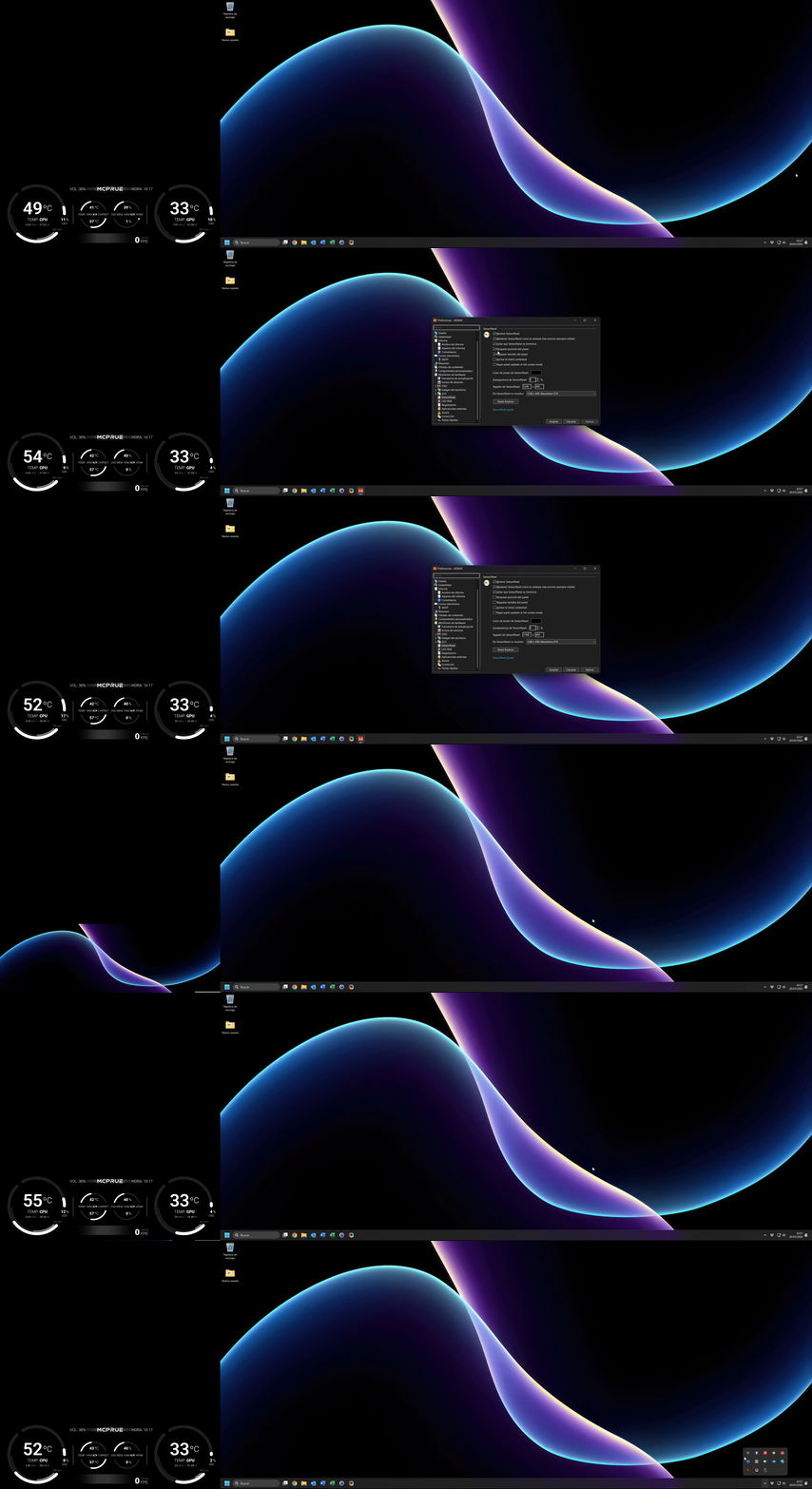
By looking for a solution for anyone still having issues with the SensorPanel moving, changing size, or restarting when using a secondary display with a different scale or resolution on Windows (as me, running latest AIDA64 8.25 version), and coming from this: I would like to introduce y'all: AIDA64 SensorPanel Watcher AIDA64 SensorPanel Watcher is a light script in refinement phase (but actually working) that checks if the AIDA .ini configuration file has changed and automatically readjust the position and size of the SensorPanel if they have changed as well. Note: The full script has been shared, but the Position and Size of the SensorPanel have to be changed according to users' preference.
- 1 reply
-
- 1
-
-
AIDA64 SensorPanel Watcher – Complete Guide Introduction The AIDA64 SensorPanel can sometimes open in the wrong position or size, especially on multi-monitor setups. This Watcher system ensures the panel always opens in the correct location and size, using a master .ini file as reference. Features: Automatically runs when Windows starts Monitors the AIDA64 .ini file every few seconds Fixes the SensorPanel window position and size Runs silently in the background The system uses: Master .ini file – your reference configuration PowerShell Watcher script – monitors the .ini file and fixes the window Hidden VBS launcher – runs the batch silently with admin rights Optional batch file – copies the master .ini file and restarts AIDA64 Step 1: Prepare the Master .ini File Create a folder to store your reference .ini file. Example: C:\Path\To\Master\aida64.ini Copy your desired AIDA64 .ini file into this folder. This is the file the watcher will use as a reference. Step 2: Create the Batch File Open Notepad and paste: @echo off taskkill /f /im aida64.exe >nul 2>&1 timeout /t 5 /nobreak >nul copy /y "C:\Path\To\Master\aida64.ini" "C:\Program Files\FinalWire\AIDA64 Extreme\aida64.ini" >nul start "" "C:\Program Files\FinalWire\AIDA64 Extreme\aida64.exe" Save as AIDA64_Fixed_SensorPanel.bat. Note: Replace the paths with your master .ini file path and AIDA64 installation folder. Step 3: Create the Hidden VBS Launcher Open Notepad and paste: Set objShell = CreateObject("Shell.Application") If WScript.Arguments.Length = 0 Then objShell.ShellExecute "wscript.exe", """" & WScript.ScriptFullName & """ runas", "", "runas", 1 WScript.Quit End If batPath = "C:\Path\To\Watcher\AIDA64_Fixed_SensorPanel.bat" Set WshShell = CreateObject("WScript.Shell") WshShell.Run """" & batPath & """", 0, False Save as AIDA64_Fixed_SensorPanel_Hidden.vbs. Note: Replace batPath with the path to your batch file. Step 4: Create the PowerShell Watcher Script Open Notepad and paste: $master = "C:\Path\To\Master\aida64.ini" $install = "C:\Program Files\FinalWire\AIDA64 Extreme\aida64.ini" $vbs = "C:\Path\To\Watcher\AIDA64_Fixed_SensorPanel_Hidden.vbs" $SensorPanelClass = "TForm_HWMonitoringSensorPanel" if (-not ("WinAPI" -as [type])) { Add-Type @" using System; using System.Runtime.InteropServices; using System.Text; public class WinAPI { public delegate bool EnumWindowsProc(IntPtr hWnd, IntPtr lParam); [DllImport("user32.dll")] public static extern bool EnumWindows(EnumWindowsProc lpEnumFunc, IntPtr lParam); [DllImport("user32.dll", SetLastError=true)] public static extern int GetClassName(IntPtr hWnd, StringBuilder lpClassName, int nMaxCount); [DllImport("user32.dll")] public static extern bool IsWindowVisible(IntPtr hWnd); [DllImport("user32.dll")] public static extern bool MoveWindow(IntPtr hWnd, int X, int Y, int nWidth, int nHeight, bool bRepaint); } "@ } $global:foundHandles = @() function Get-FileHashMD5($file) { if (Test-Path $file) { return (Get-FileHash $file -Algorithm MD5).Hash } else { return "" } } function Fix-SensorPanel { $global:foundHandles = @() $callback = { param($hWnd, $lParam) if ([WinAPI]::IsWindowVisible($hWnd)) { $classSb = New-Object System.Text.StringBuilder 256 [WinAPI]::GetClassName($hWnd, $classSb, $classSb.Capacity) | Out-Null if ($classSb.ToString() -eq $SensorPanelClass) { $global:foundHandles += $hWnd } } return $true } $delegate = [WinAPI+EnumWindowsProc]$callback [WinAPI]::EnumWindows($delegate, [IntPtr]::Zero) | Out-Null foreach ($hWnd in $global:foundHandles) { for ($i=0; $i -lt 10; $i++) { [WinAPI]::MoveWindow($hWnd, -1280, 1040, 1280, 400, $true) Start-Sleep -Milliseconds 200 } } } while ($true) { if (Get-FileHashMD5($master) -ne Get-FileHashMD5($install)) { Start-Process "wscript.exe" -ArgumentList ('"' + $vbs + '"') -Verb RunAs } Fix-SensorPanel Start-Sleep -Seconds 5 } Save as AIDA64_Watcher.ps1. Note: Update paths to your master .ini file, installation folder, and VBS file. Step 5: Create a Hidden Scheduled Task Open Task Scheduler (Win + S → Task Scheduler) Click Create Task… General Tab: Name: AIDA64 Sensor Panel Watcher Check Run only when user is logged on Check Run with highest privileges Configure for: Windows 10 Triggers Tab: New → Begin task: At log on → OK Actions Tab: New → Action: Start a program Program/script: powershell.exe Add arguments: -WindowStyle Hidden -ExecutionPolicy Bypass -File "C:\Path\To\Watcher\AIDA64_Watcher.ps1" Settings Tab: Allow task to run on demand Run task as soon as possible after a missed start Restart task if it fails (1 min interval, 3 attempts) Click OK → Enter password if requested How it Works The Watcher checks the installed .ini file against the master .ini file If differences are detected, it runs the batch file silently to update AIDA64 The PowerShell script searches for the Sensor Panel window by class name Moves it to the correct monitor and resizes it Runs invisible in the background with very low resource usage Resource Usage: The Watcher uses minimal CPU and memory (typically <5 MB RAM, negligible CPU). Disclaimer Text created using ChatGPT, as English is not my native language. It is strongly recommended to create a Windows system restore point before editing anything. No responsibility is assumed for unexpected malfunctions; use at your own risk.
-
@Mice007 I’m trying to understand which lines in the AIDA64 ini file actually define the size and position of the Sensor Panel. I’ve noticed that some settings like enabling the context menu are saved, but the width, height, and position don’t seem to be applied from the ini. The reason I ask is that I’ve created a script acting as a ‘watcher’ to always copy a master ini to the installation folder if it detects changes. If I can determine which ini parameters control the size, it would allow me to partially fix the panel misalignment... EDIT: Nevermind, I am programming a basic "Watcher" that checks the size and position of the SensorPanel every 5 seconds, and adjusts it if there have been changes EDIT 2: Watcher launched (working but still in refinement process). See below
-
I’d like to share a detailed solution for anyone struggling with the Sensor Panel moving, resizing, or resetting when using a secondary display with different scaling or resolution. This is a common pain point discussed by users like scotts, supes, WeakLaugh, and Atila on the official AIDA64 forums, where many report that the panel resizes itself or jumps between monitors after rebooting or reconnecting displays. (https://forums.aida64.com/topic/7580-sensor-panel-resized-itself-after-connecting-new-monitor-now-i-cant-fix-it/) Goal Lock your Sensor Panel on a secondary monitor with fixed size/position and make it launch reliably with Windows — even if monitors disconnect/reconnect or have different DPI scaling. 1) Edit the AIDA64 configuration file (AIDA64.ini) Close AIDA64 entirely. Open Notepad as Administrator. Locate your AIDA64.ini file: %localappdata%\FinalWire\AIDA64\AIDA64.ini or in your installation folder. Find the [SensorPanel] section or add it at the end if it doesn’t exist. Replace or set the following values according to your monitor setup: [SensorPanel] Active=1 FixedSize=1 Width=1280 Height=400 PositionX=-1600 PositionY=1040 LoadLayout=1 LayoutFile=C:\AIDA64\SensorPanel_Fixed.spzip [Display] AutoAdjustDPI=0 AutoAdjustResolution=0 What to change for your setup: Width / Height → set these to the exact resolution of your Sensor Panel window. This locks the panel size. PositionX / PositionY → coordinates of the panel on your screen: PositionX = horizontal offset relative to the primary monitor; multiply by the primary monitor’s DPI scaling if it differs from 100%. PositionY = vertical offset from the top of the virtual desktop; usually PrimaryMonitorHeight - SecondaryPanelHeight if the panel sits at the bottom. LayoutFile → point to the .spzip or .a64sp layout you saved. Use the full path, without quotes. [Display] section prevents AIDA64 from automatically adjusting DPI or resolution when monitors reconnect. 2) Create an automatic startup script (.bat) This ensures AIDA64 opens after Windows has initialized monitors, preventing resizing or jumping. Open Notepad. Paste: @echo off REM Close AIDA64 if already running taskkill /f /im aida64.exe >nul 2>&1 REM Wait 8 seconds for Windows to arrange displays (adjust if your monitors need more time) timeout /t 8 /nobreak >nul REM Start AIDA64 start "" "C:\Program Files (x86)\AIDA64 Extreme\aida64.exe" What to change for your setup: timeout /t 8 → increase if your secondary display takes longer to initialize. Path to aida64.exe → replace with the actual path where AIDA64 is installed on your PC. Save as AIDA64_Startup.bat (type: All Files, not .txt). Create a shortcut to this .bat and place it in the Startup folder: Win + R → type shell:startup → paste shortcut. Optional: In the shortcut properties → Run: Minimized, so the console window doesn’t appear. What This Fix Solves Locks Sensor Panel size & position on your secondary monitor Prevents Windows DPI scaling from resizing it unexpectedly Ensures AIDA64 launches after monitors are ready Stops AIDA64 from jumping to the primary display on reboot or after connecting virtual monitors Why This Is Needed Many users report that the Sensor Panel keeps resizing or moving after disconnects, restarts, or when DPI scaling differs between monitors — even with “Lock panel size/position” enabled in preferences. (https://forums.aida64.com/topic/7580-sensor-panel-resized-itself-after-connecting-new-monitor-now-i-cant-fix-it/) Credits & References Thanks to users across the AIDA64 community (e.g., scotts, supes, WeakLaugh, Atila) for identifying that the core issue relates to panel resizing on monitor changes and scaling, which inspired this workflow. (https://forums.aida64.com/topic/7580-sensor-panel-resized-itself-after-connecting-new-monitor-now-i-cant-fix-it/) Disclaimer Text created using ChatGPT, as English is not my native language. It is strongly recommended to make a backup of your .ini file before editing anything. No responsibility is assumed for unexpected malfunctions; use at your own risk. EDIT: Tested and working with version 8.25.8200 of the program
-
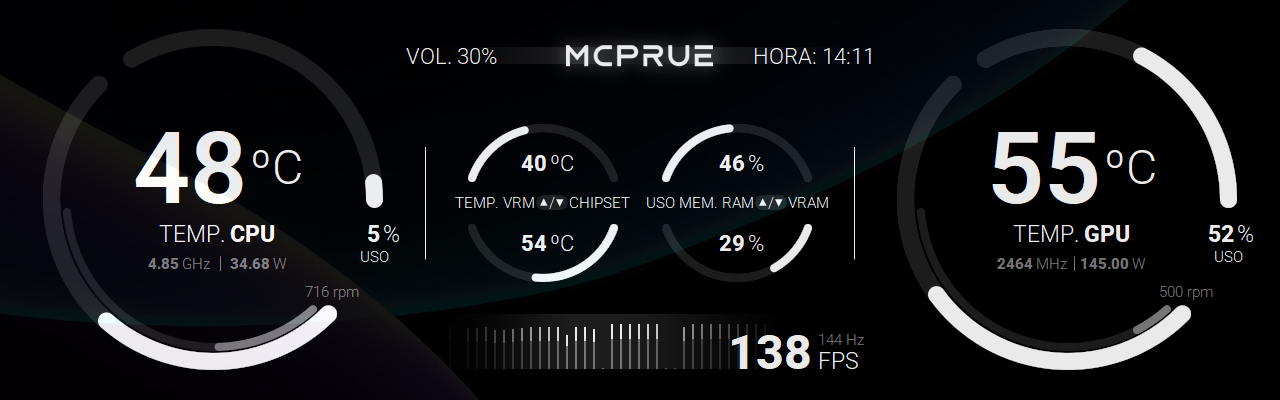
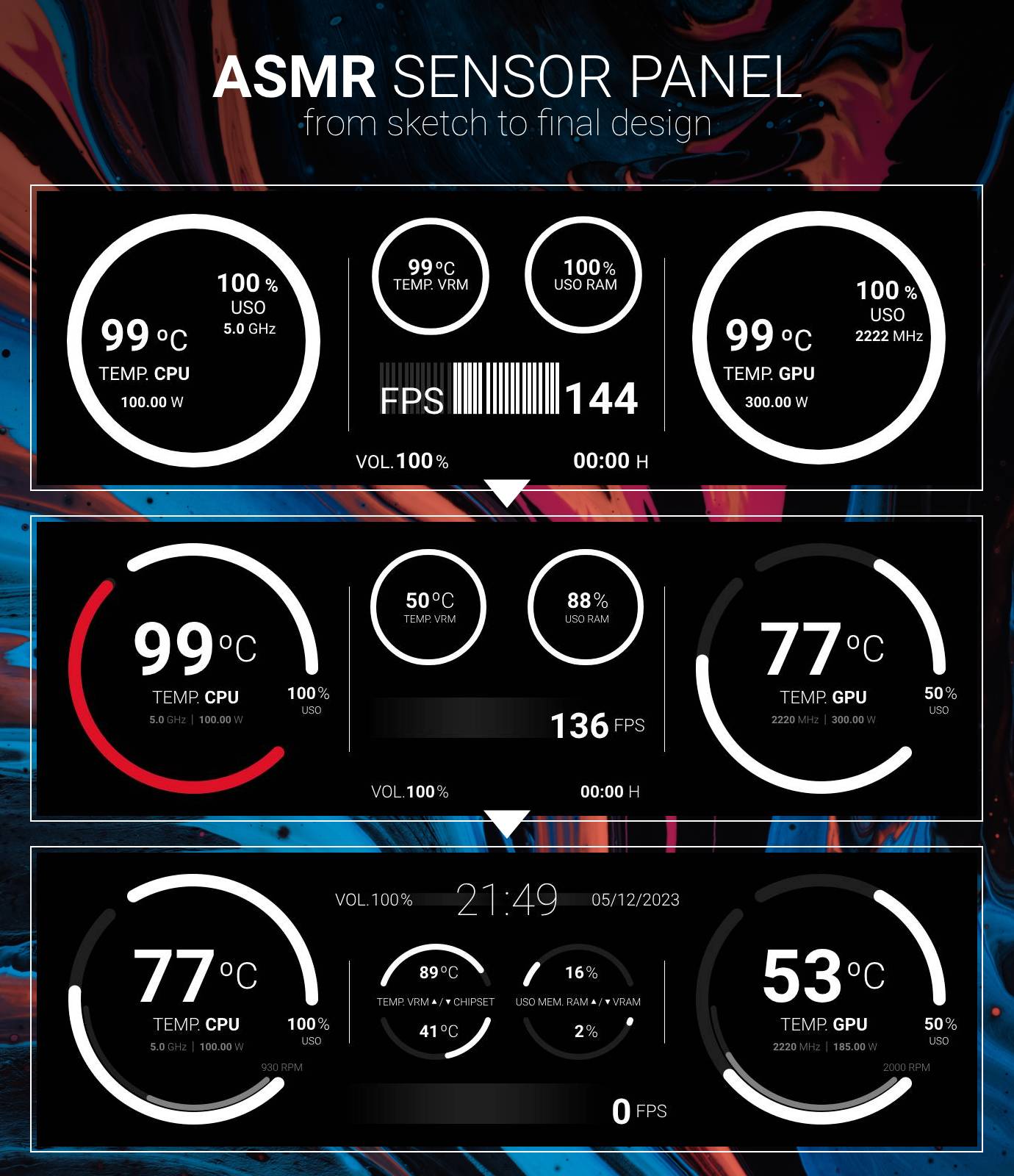
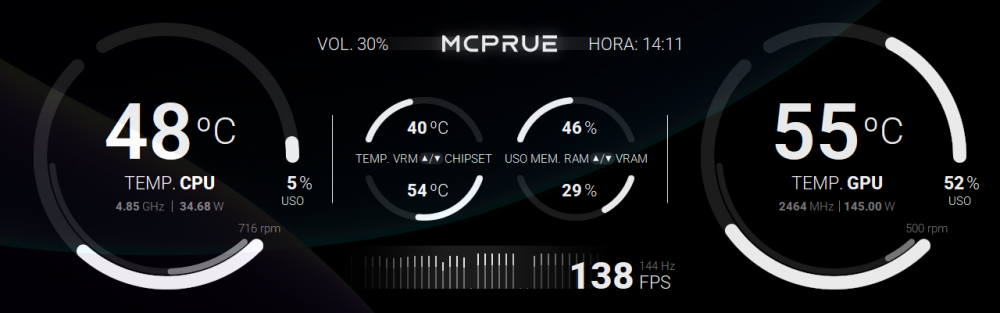
This is my last SensorPanel, used in combination with a MCPRUE Apollo SE v1 SFF case. It includes self-made 100 state gauges. 1280 x 400
-
Yep, that's what I meant with "virtually". My CPU or GPU don't go below 25 ºC and above 85 ºC, but I made a 100 state gauge for a range of 0-100.
-
In my opinion, "100 state" gauges are only worth it when you want to represent values that virtually can go from 0 to 100. For example, temperature, % usage and son on. Trying to represent 1 MHz with a single .png file should crash Aida64.
-
The process of making a sensor panel involves testing and sketching for hours. But man, it is beautiful! Feel free to download the attached gauges. Thanks to @Surjeet and @Mask Blue for the 9th September 2023 explanation on how to make and use 100 state gauges. ** DISCLAIMER: the design is MINE and MUST NOT be copied. The gauges are free to use for personal purposes ONLY. Making any profit from them is STRICTLY PROHIBITED. ** Big 120º.zip Big 180º.zip Fans.zip Small.zip
-
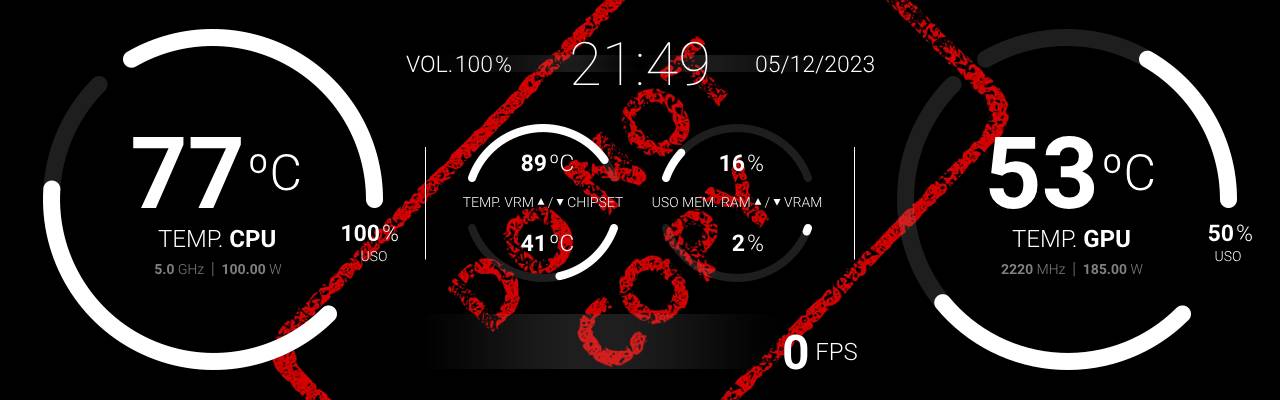
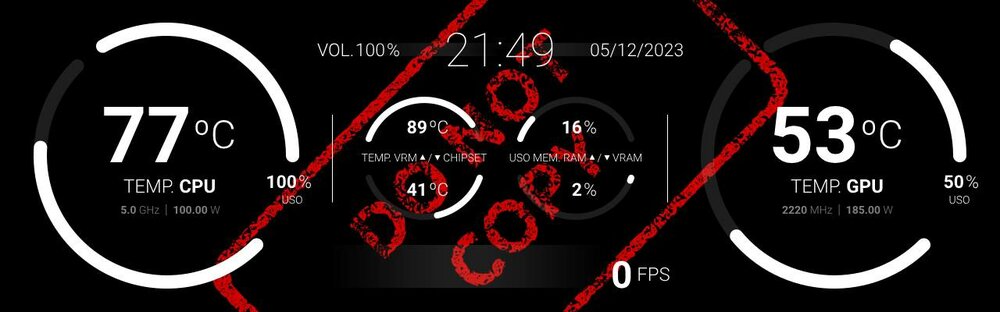
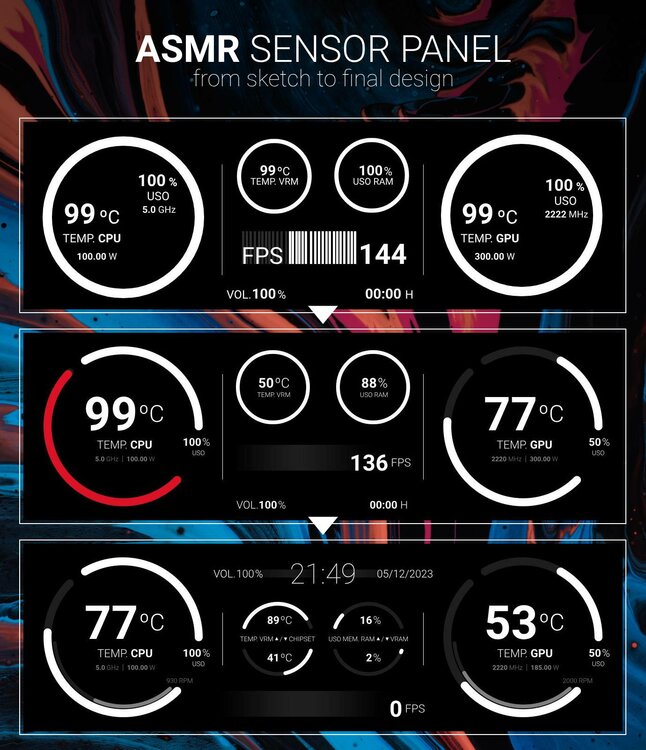
Hi beloved community! Inspired by the scandinavian style, I have designed a minimalist sensor panel for 7.9 inch displays (400 x 1280 px). I'm still working on the ASMR (Aesthetics | Symmetry | Minimalism | Round) project, but I want to share with you all a preview of it. It uses six different 100 state gauges which I will share, and a histogram for FPS monitoring following those beatiful @ThatManOnTheMoon's ones. Like and quote if you want me to share the final template!! Specially thanks also to @philipfreire and @Viperr for the inspiration.
-
Hi! Sorry about the enormous delay on my response. I've been out with AIDA64 these months. But luckily it is pretty straightforward of you download my V1 files and apply the new background on them :). I'm working on a new 400 x 1280 panel as well. Inspired by some, simple, clean and very aesthetic too. Stay tuned!